CarPlay is essential for most people, offering a superior infotainment experience compared to many car manufacturers. With quick access to favorite apps, Siri integration, seamless connectivity, and more, CarPlay enhances the driving experience.
Here are some top tips and tricks to maximize your CarPlay experience…
Updated April 7, 2026 with new iOS 26 features
Customize Your CarPlay Apps and Home Screen
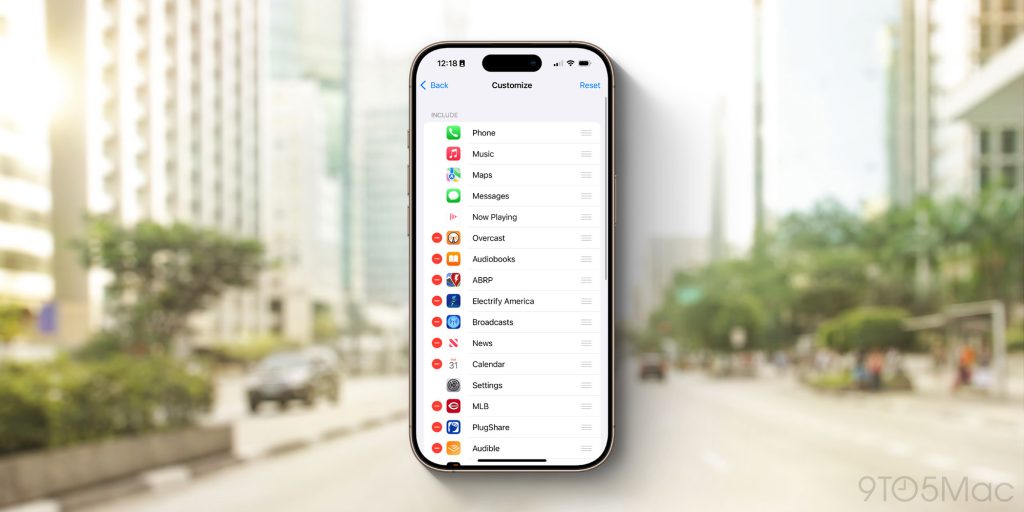
Many apps are available on CarPlay, but you might not want all of them on your Home Screen. Luckily, adjusting these options is simple.
- Open the Settings app on your iPhone
- Tap “General”
- Tap “CarPlay”
- Choose your car’s name and select “Customize”
Here, you’ll see a list of all CarPlay apps on your phone. Simply tap the red minus sign to hide apps from appearing on CarPlay.
You can also rearrange your CarPlay Home Screen on this Settings page. Drag apps into your desired order using the three lines on the right side of the app icons.
CarPlay Wallpapers
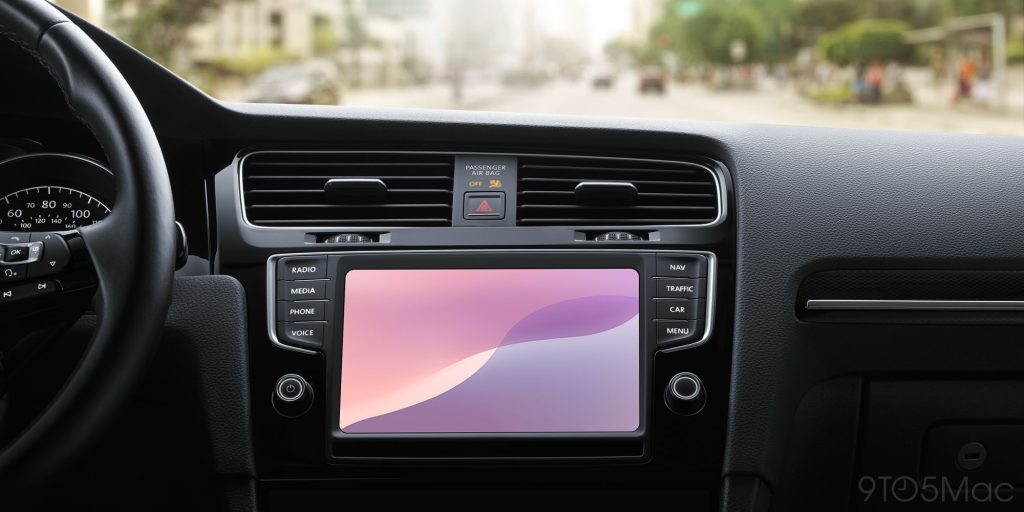
Apple offers a selection of pre-installed wallpapers for CarPlay. While you can’t use any photo as your wallpaper, you can choose from these options.
- Open the Settings app on CarPlay
- Select “Wallpaper”
- Choose your desired wallpaper and tap “Set”
Apple occasionally adds new wallpaper options to CarPlay, but the choices are limited.
Wireless or Wired?
CarPlay can work wirelessly or wired, depending on your car’s make and model. Wired CarPlay usually offers a faster and more reliable experience. Wireless CarPlay may have latency when changing songs or using Siri.
Here’s a recommended approach:
- Use wireless CarPlay for short trips around town with multiple stops.
- Use wired CarPlay for longer road trips.
For any car, you can bring wireless CarPlay with the CarlinKit 5.0 adapter, converting wired CarPlay to wireless for under $60.
Dark Mode
CarPlay offers light and dark mode interfaces. In the CarPlay Settings app, you can select from three options: Light, Dark, or Automatic.
The automatic setting switches between light and dark modes based on the time of day and lighting conditions.
Driving Focus Mode
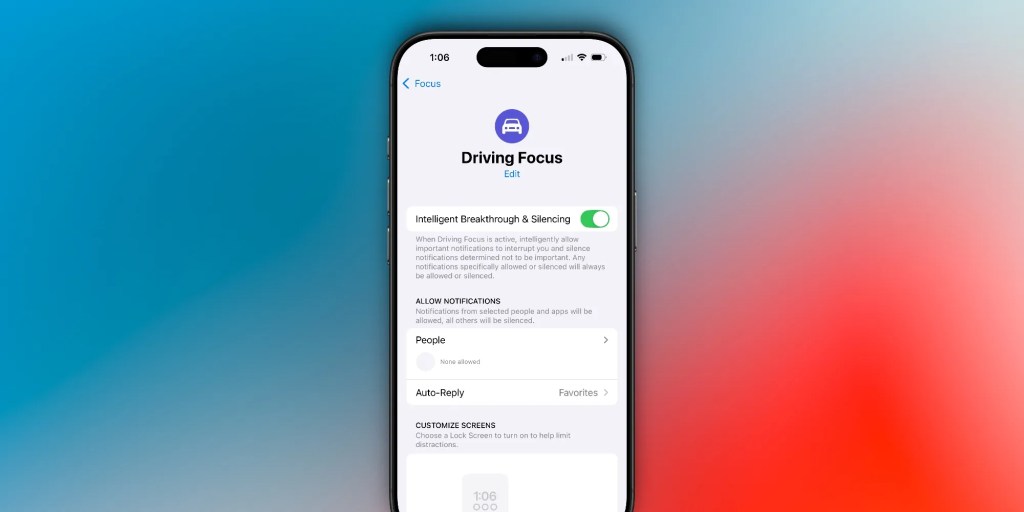
One key safety feature of CarPlay is the Driving Focus mode, which blocks notifications, messages, and calls to keep your attention on the road. Customize this mode in the iPhone Settings app to allow notifications from specific contacts or enable an automatic reply while driving.
Announce Messages
Announce Messages reads your messages aloud using Siri, allowing you to reply using your voice. This feature works with Apple’s Messages app and third-party apps like WhatsApp.
- Go to Settings > Siri & Search > Announce Notifications on your iPhone
- Enable Announce Notifications and select supported apps
- In CarPlay Settings app, ensure Announce Messages with Siri is enabled
SharePlay
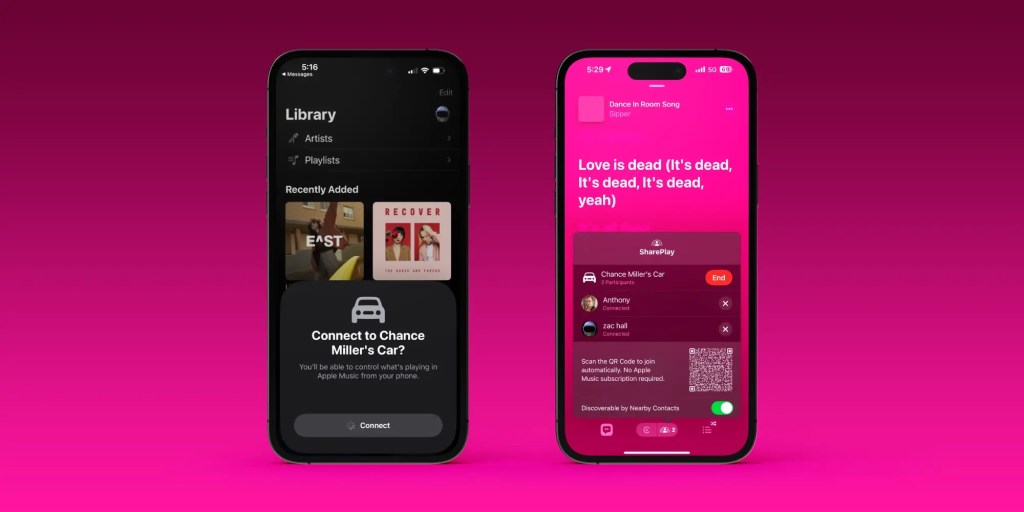
SharePlay allows others in your car to contribute songs to the queue on Apple Music. By generating a QR code on the Apple Music Now Playing screen, passengers can scan it to join the SharePlay session and add songs to the queue, even without Apple Music.
Wrap Up
Are you a CarPlay user? Share your favorite tips and tricks in the comments below.
If you’re an electric vehicle owner, consider charging your car at home with rooftop solar panels. To find a trusted solar installer offering competitive pricing, check out EnergySage. They connect you with pre-vetted installers, ensuring quality solutions and savings compared to going solo. Plus, it’s free and without sales calls until you select an installer.
Compare personalized solar quotes online with Energy Adviser support every step of the way. Get started here.


FTC: We use income earning auto affiliate links. More.