The Samsung Galaxy S26 Ultra has recently been released, and as expected, Samsung has included a host of new features for users to explore. From productivity tools to creative apps and AI capabilities, this phone has it all.
If you’ve made the decision to invest in Samsung’s latest flagship device, this guide will assist you in maximizing its potential. I’ll walk you through finding and customizing all the new features so you can use them to your liking.
While this article focuses on the S26 Ultra, many of these tips are applicable to the Galaxy S26 and S26+ as well (with the exception of the privacy display and APV). Let’s dive in.
1. Adjust the Privacy Display
Privacy Display is a standout feature of the Samsung Galaxy S26 Ultra, offering a unique solution to prevent others from viewing your screen at an angle. Enabling this feature ensures your screen remains private from prying eyes around you.
It’s important to note that Privacy Display affects the display quality when enabled, reducing resolution, brightness, and contrast. However, toggling it on and off is simple, and you have options to automate the feature.
Luke Baker
How? To access Privacy Display settings, swipe down from the upper right-hand side of your screen to open the quick settings. At the bottom of the panel, you’ll find a button to adjust basic options.
Tapping on “Details” at the bottom opens the full settings menu, or you can navigate to Settings, then Display, and finally Privacy Display. Here, you can toggle the feature, adjust the strength, and set automatic activation conditions.
Options include normal Privacy Display for better resolution but easier viewing angles, or maximum privacy protection for reduced screen quality but enhanced privacy. You can also set automatic triggers based on app usage or notifications.
2. Reorganise the Quick Settings
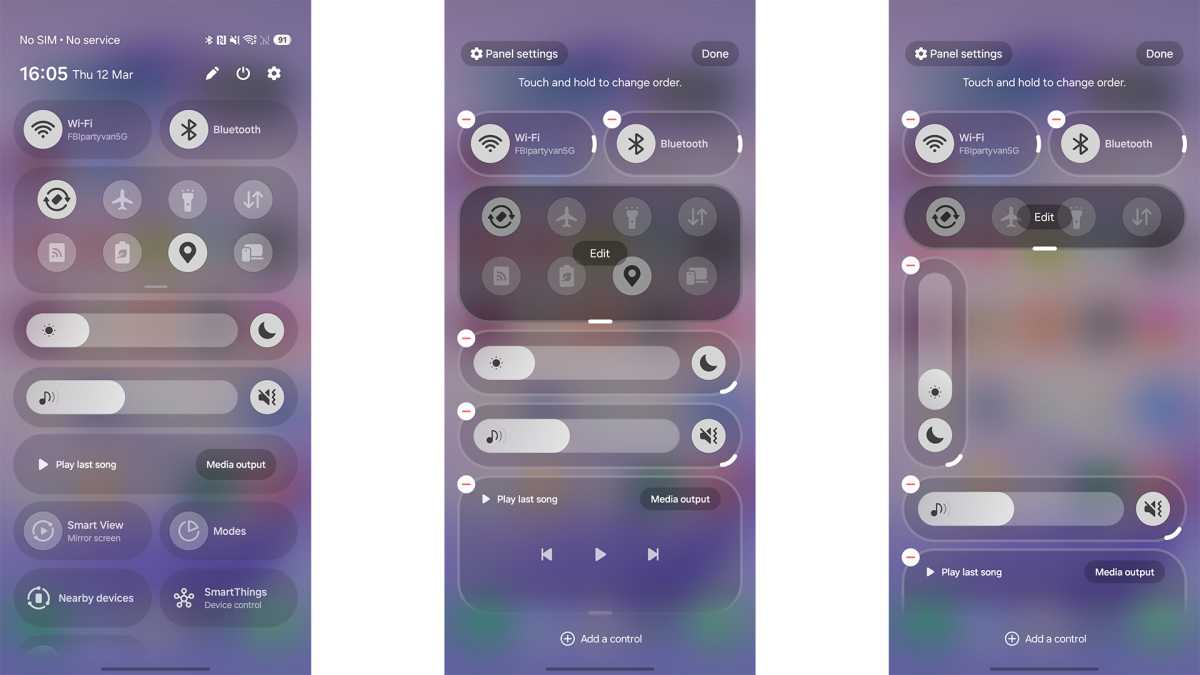
The S26 Ultra offers extensive customization for Quick Settings, allowing you to rearrange and resize icons and sliders according to your preference. If you find certain functions hard to access, you can easily move them to the top for convenience.
You can also change the orientation of sliders from horizontal to vertical, tailoring the Quick Settings panel to suit your needs.
Luke Baker
How? Swipe down from the upper right side of your screen to access the Quick Settings shade. Tap on the Pencil icon at the top right to enter edit mode.
Here, you can resize elements, remove controls, and add new ones to customize the Quick Settings panel to your liking.
3. Boost the Resolution
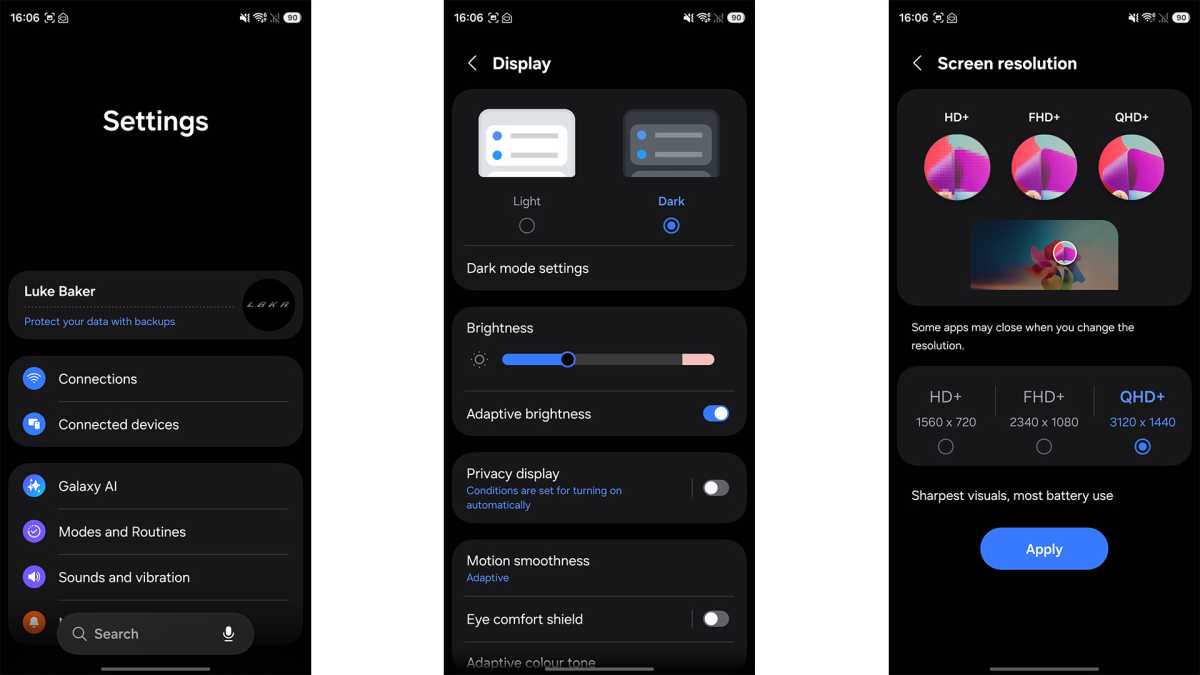
The Samsung Galaxy S26 Ultra comes with a default display resolution of 1080p for optimized battery life. If you want to take full advantage of the QHD+ panel, you can increase the resolution in the settings.
By enhancing the resolution, you can enjoy sharper visuals and a more detailed display experience.
Luke Baker
How? Navigate to Settings, select Display, and then choose Screen Resolution. Here, you can switch between HD+, FHD+, and QHD+ resolutions.
4. Save time with Now Nudge
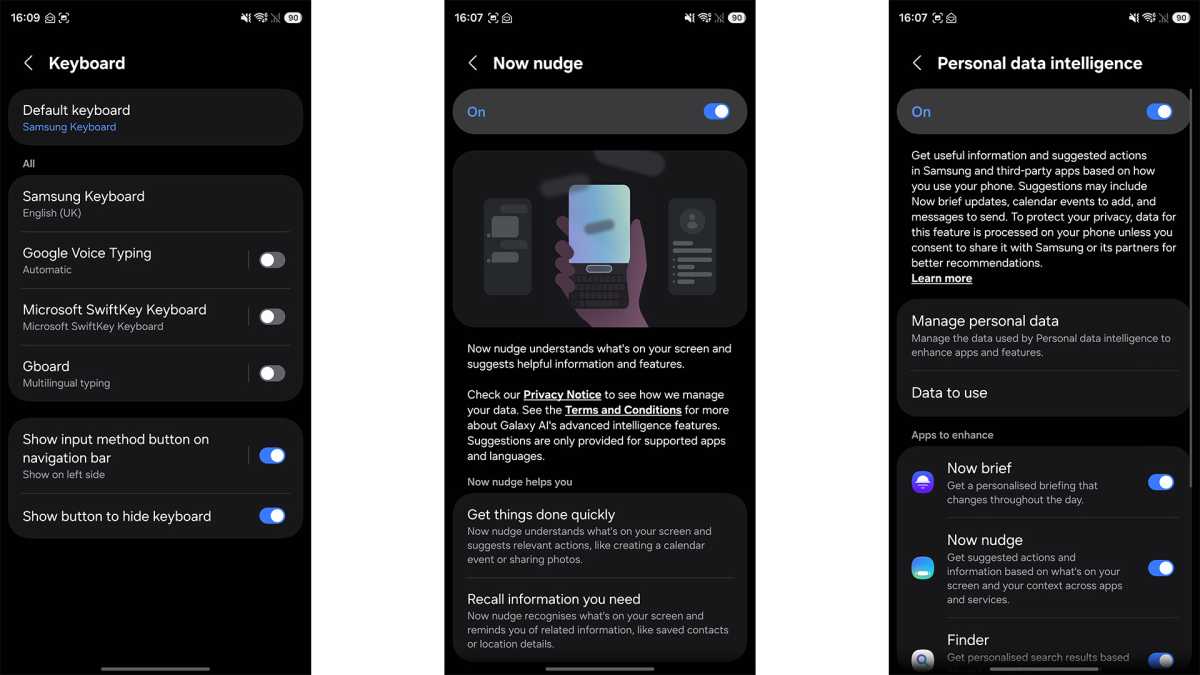
Now Nudge is a new feature that enhances predictive replies by providing quick links to relevant content. Whether it’s photos, phone numbers, or calendar events, Now Nudge makes it easier to respond to messages swiftly.
By leveraging AI capabilities, Now Nudge streamlines your interactions and saves you time by anticipating your needs.
Luke Baker
How? Now Nudge is integrated into Samsung’s keyboard, so make sure to switch to Samsung Keyboard in Settings under General Management to access this feature. Then, enable Now Nudge in Settings > Galaxy AI to start using it.
By granting the necessary permissions, Now Nudge will provide contextually relevant suggestions for quick actions.
5. Make images with Creative Studio
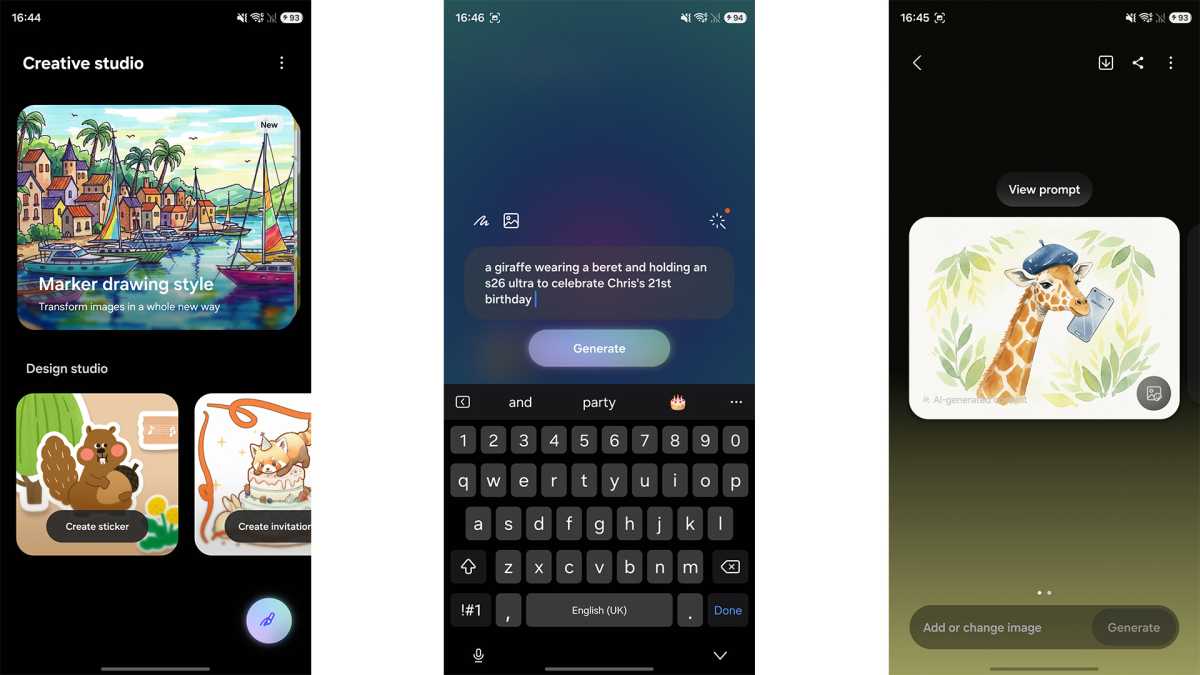
Creative Studio is a versatile app powered by AI, allowing users to create custom stickers, wallpapers, invitations, and more with ease. By simply describing your idea, Creative Studio can bring it to life in minutes.
Whether you’re looking to add a touch of creativity to your messages or design unique visuals, Creative Studio has you covered.
Luke Baker
How? Enable Creative Studio in Galaxy AI settings, and a new app will appear on your home screen for easy access. From there, you can choose the type of artwork you want and let AI work its magic based on your input.
6. Switch up your voice assistant
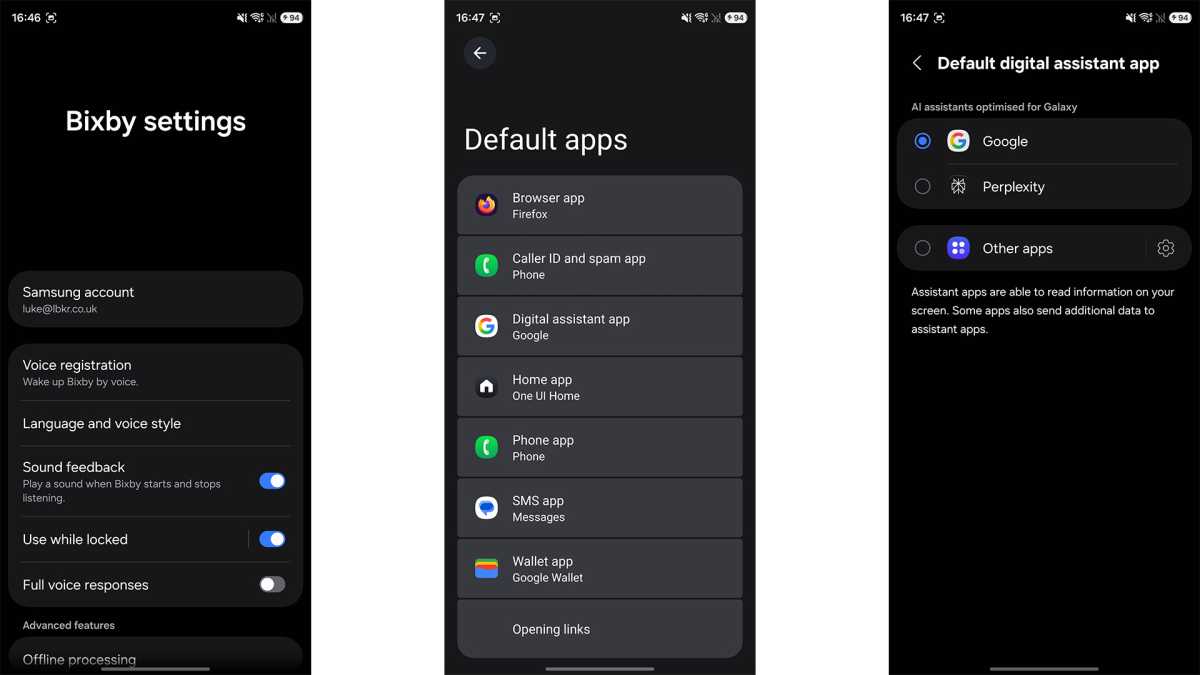
The return of Bixby brings a smarter voice assistant option to the Samsung Galaxy S26 lineup. While Bixby offers deeper integration with Samsung devices, you can still opt for third-party assistants like Gemini or Perplexity.
Whether you prefer Bixby’s control over device settings or Gemini’s information retrieval capabilities, you have the flexibility to choose the voice assistant that best suits your needs.
Luke Baker
How? Customize your voice assistant by accessing Bixby settings in Settings > Bixby Settings. Here, you can set up voice activation and explore various assistant options.
If you prefer using a different voice assistant like Perplexity, head to Settings > Apps > Choose default apps to switch between voice assistants.
7. Turn on Call Screening
Call Screening is a valuable feature on the S26 models that allows you to screen calls from unknown numbers. By engaging an AI assistant to interact with the caller, you can determine the nature of the call before answering.
This feature provides a transcription of the call interaction, enabling you to make an informed decision on whether to pick up or block the call.