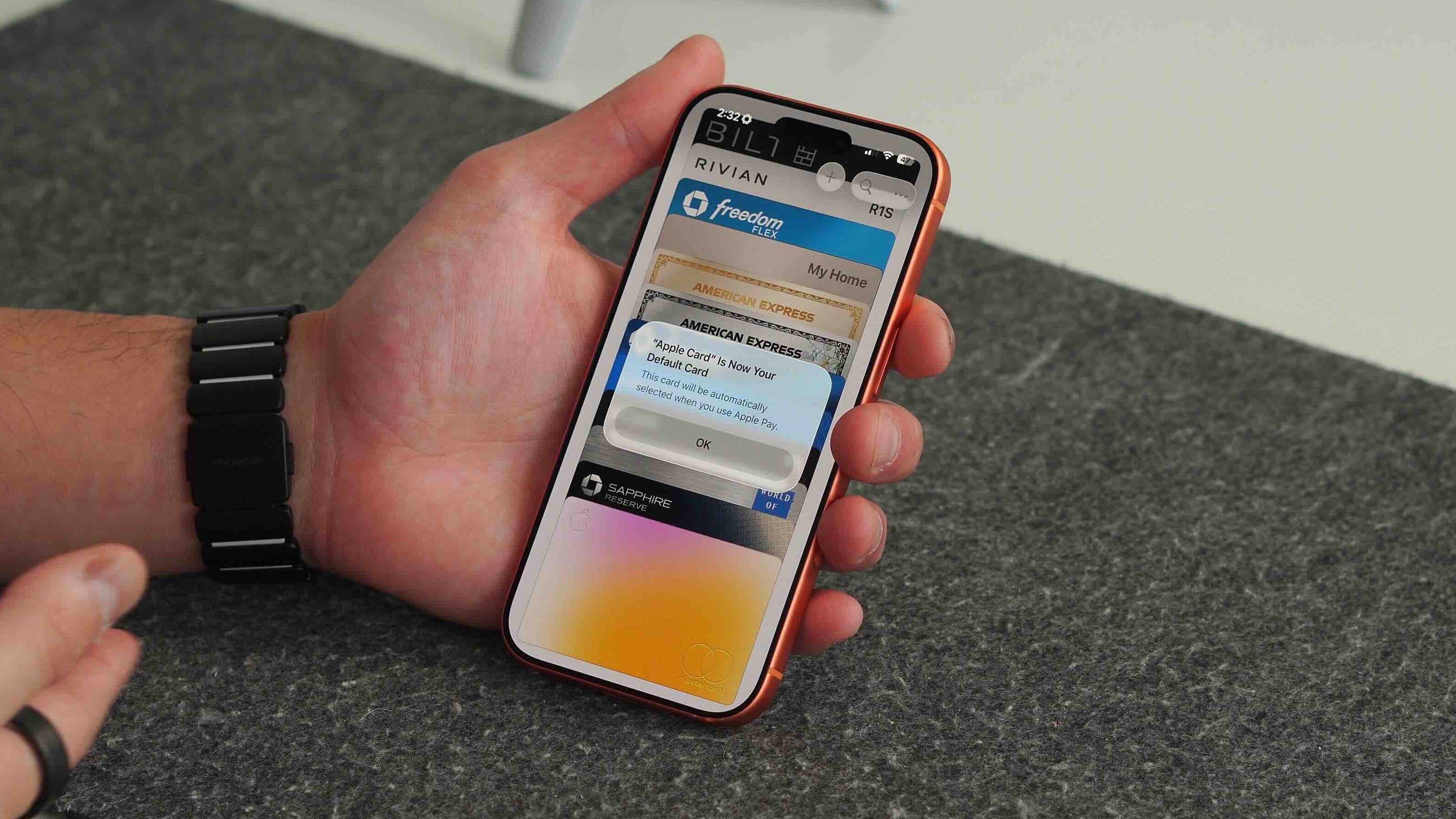
When most people think of the Apple Wallet app, they think of just Apple Pay. They think it’s a way to pay for things digitally instead of using a physical card. While this is true, the Apple Wallet App can do so much more and is quietly becoming one of the most useful apps on your iPhone. It can give you public transit access, a form of digital keys for your home or car, peer-to-peer payments, and even storing your physical card information (finally!). Apple Wallet in iOS 26 can realistically replace most of what people still carry in their pockets, as it has for me. If you’ve only used it for Apple Pay, you’re honestly missing the best parts. Here are some of the best Apple Wallet features!
Be sure to check out our latest video going over the Apple Wallet and everything it can do!
1. Express Transit and Express Keys
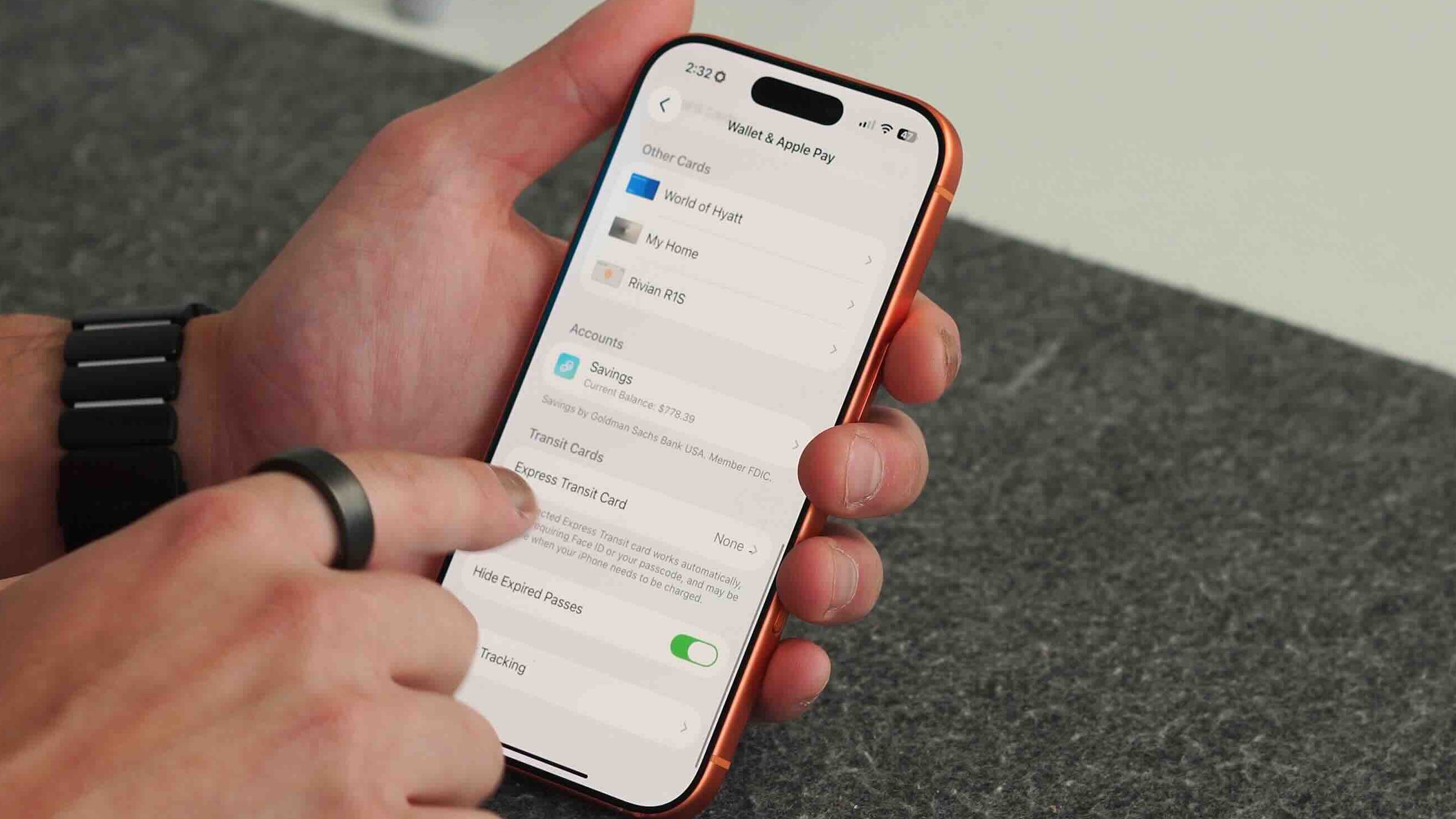
Normally, when you need to pay for something at a store with the Apple Wallet, you need to double-tap the lock button and provide either FaceID or TouchID to authenticate your card. Then it will allow the transaction to take place. This is done for security reasons, of course. But if you are a public transit commuter and you are constantly going through subway turnstiles, the last thing you want to do when you are in a rush is have to double-tap to authenticate a tap to pay transaction. To get rid of this friction, Apple gave us Express Transit. This allows you to designate one card in your Apple Wallet as your transit card. So you no longer have to give FaceID to initiate that tap to pay. You just walk up to the turnstile, tap your phone (even if the screen is off), and it will charge your credit card that is designated as your transit card. Here is how to set it up.
- Go to Settings > Wallet & Apple Pay
- Tap Express Transit Card
- Choose your preferred transit or payment card
- Confirm with Face ID/passcode
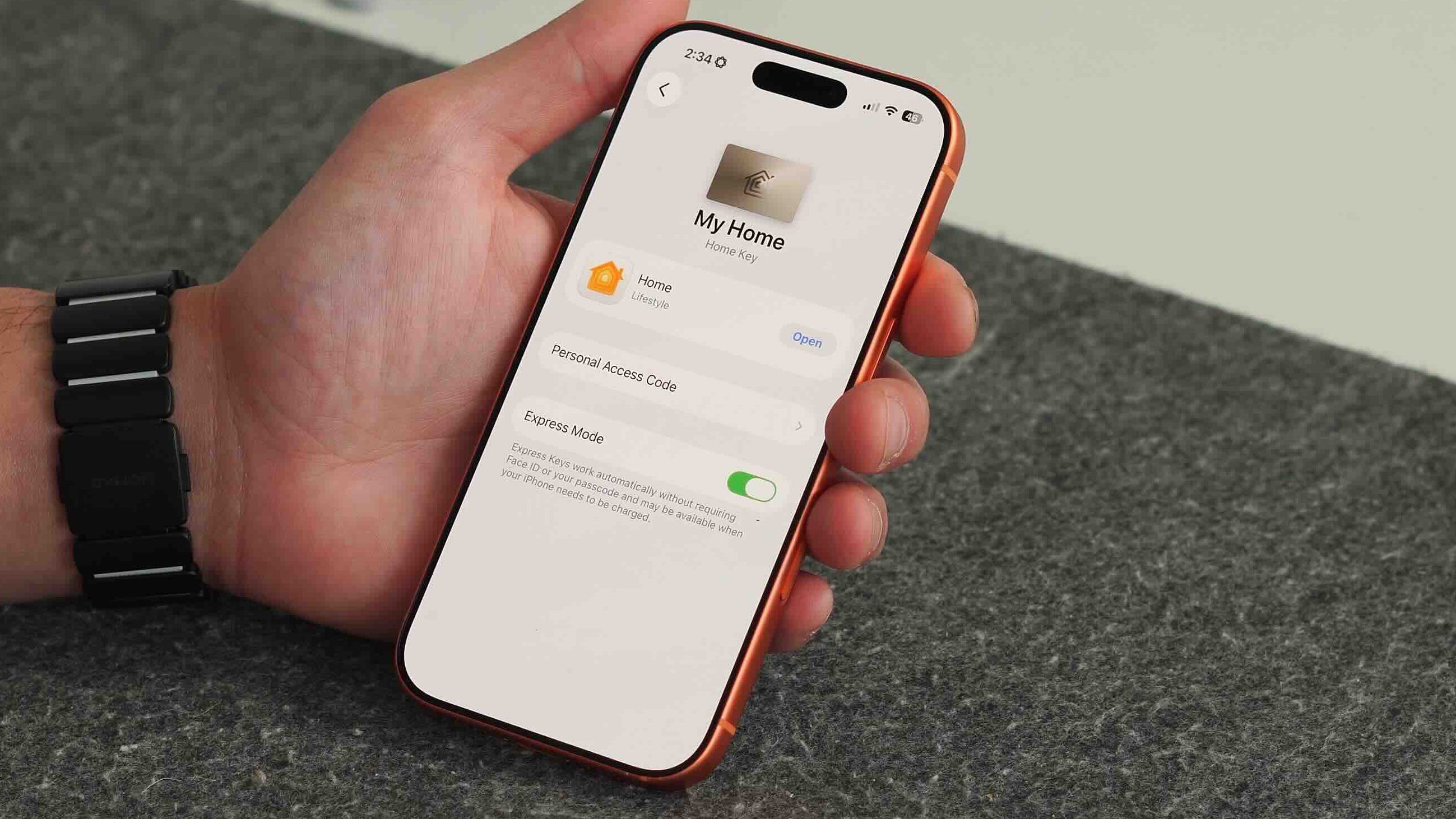
The same idea applies to your smart home lock. If you have a lock on your house that uses a tap to unlock, by default, you need to tap the lock, then provide FaceID unlock, then tap again. Instead of all that, you can just set up Express Mode for that digital key. Such an amazing and time-saving feature!
2. Default Card
If you are like me, then you more than likely have more than just one credit card. I like to play the points and miles game, so I use different cards for different categories of spend to make sure I get max value for every dollar I spend. So Apple makes it incredibly easy to control which card is used when you double-click the side button. You can change your default card in Settings or simply drag cards inside Wallet to reorder them. There are two ways to set up your default card:
Method 1:
- Go to Settings > Wallet & Apple Pay
- Tap Default Card
- Select your preferred card
Method 2:
- Open Wallet app
- Press and hold a card
- Drag it to the front/bottom position
- That card becomes your default
So if you have a card that you use most often, this is the way to make sure it always comes up for your Apple Pay transactions first.