The iPhone 17 series is one of Apple’s boldest in recent memory. The base iPhone 17 has adopted once Pro-only features, such as the long-requested 120Hz ProMotion Display, while the iPhone Air pushes the boundaries of design and engineering, and the iPhone 17 Pro and Pro Max boast a swathe of truly professional new features, including ProRes RAW and GenLock.
They also arrive with the latest iOS 26 user experience, a visual departure from the flat interface of previous releases. Liquid Glass, plus a few notable additions, changes the look, feel, and behavior of iOS in new and interesting ways.
Whether you’re new to the iPhone 17 series or a long-time iPhone user upgrading to one of Apple’s best and brightest new entries, you’ll undoubtedly find some helpful tips and tricks in this guide. It’s written by someone who’s reviewed almost every model of the last decade and spent a lot of time optimizing the iOS experience as a result.
Customize the lock screen clock
With iOS 16, Apple added the ability to customize the lock screen clock’s font and color but, with iOS 26, it expanded on the degree of personalization available.
Now, you also have the option to scale the clock which, paired with the Always On Display, makes for a useful one-two punch of functionality. You can also still customize font and color, as well as choose whether it adopts the Liquid Glass aesthetic or the more traditional flat appearance of previous generations of iOS.
Foundry | Alex Walker-Todd
HOW? From your lock screen, press and hold on a blank area until the lock screen wallpaper zooms out. Next, tap the Customize button, which appears at the bottom of the screen. Bounding boxes will appear around all the key UI elements you can interact with, including the clock.
Tap and drag on the grab handle visible in the bottom right of the clock’s bounding box, and then simply drag downwards to extend the clock to your preferred height.
Once you’re happy with the position of the lock screen clock, tap anywhere within the clock’s bounding box to bring up the Font & Color menu. As well as adjusting font and color, there’s now a new Glass / Solid toggle, which you can experiment with too.
Spatial Scene lock screen
Sticking with lock screen tips, iOS 26 also introduces a faux 3D effect on certain images. Called Spatial Scenes, this effect can be applied to your lock screen.
Provided you’ve chosen a lock screen image that the phone deems compatible with the feature (usually one with a clear foreground subject), you should be able to create a Spatial Scene lock screen.
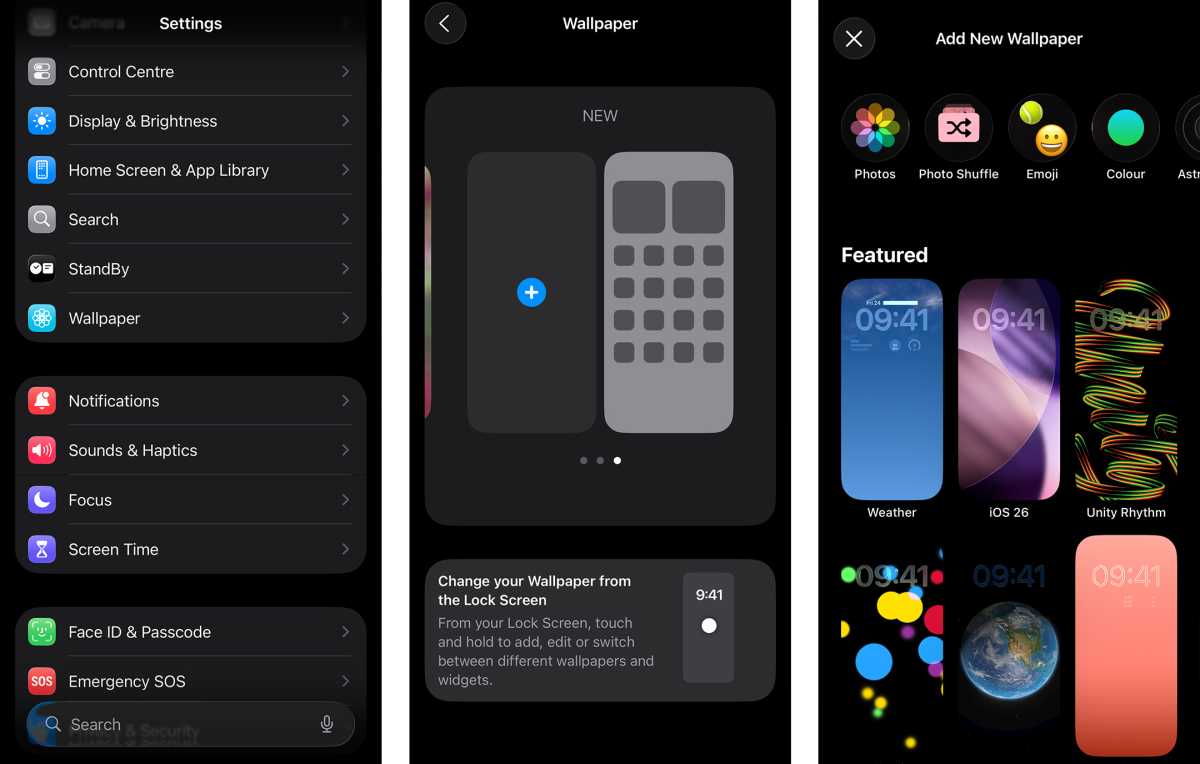

HOW? First, head to Settings and then look for and tap on Wallpaper. From here, tap + Add New Wallpaper, or simply swipe along until you see ‘New’ at the top, and then tap the + icon to create a new wallpaper pair.
From here, tap on the Photos app icon in the top left of the screen. Next, choose a photo you want to use as your lock screen. Your phone will then switch to a full-screen lock screen preview, with your chosen image front and center.
Provided your phone deems the image you’ve chosen compatible with Spatial Scenes, you’ll see two icons towards the bottom right of your screen, just above whatever lock screen shortcut you have assigned in the bottom right corner (usually, it’s the Camera app).
The left of these two icons should resemble a hexagon with a strikethrough. To enable Spatial Scenes on your lock screen, tap this hexagonal icon. After a brief bit of processing, where your phone will generate your new Spatial Scene lock screen, tap Add in the top right of the screen.
As you’re creating a new lock screen from scratch, tap Set as Wallpaper Pair on the subsequent pop-up. You’ll then be taken back to the Wallpaper Settings screen, but you can swipe up to close Settings or simply lock your phone.
Next time you tap the screen or power button to wake your phone up, you’ll be able to tilt your phone in your hand and enjoy the cool parallax effect of your newly-created Spatial Scene lock screen.
Note: Spatial Scene wallpapers only appear on the lock screen. On your home screen, they’ll just present as static images. Also, every time you change your lock screen image, you will have to re-enable the Spatial Scene feature. Your lock screen will become static and dimmed if you have a Focus Mode – like Do Not Disturb or Sleep – active.
Spatial Scene in Photos
If you want to see what the Spatial Scene effect would be like on multiple photos in your gallery, without having to go through the rigamarole above each time, you can easily view any compatible images as Spatial Scenes, right in iOS’ native Photos app.