There are numerous valuable upgrades and enhancements in iOS 26 beyond the controversial new Liquid Glass design. However, after every major iOS release, many users face challenges upon installation.
If you have not yet updated to iOS 26, it is advisable to be aware of the common issues reported by users before proceeding with the download. And if you have already updated and are experiencing issues with your iPhone, rest assured that you are not alone.
Highlighted below are some of the major problems reported by users and potential solutions if you are encountering them.
Excessive Battery Drain and Overheating After Updating
One of the most common complaints about iOS 26 is the significant decrease in battery life and increased device temperature, especially during the initial days after the update.
Various sources have attributed this issue to higher power consumption resulting from the new Liquid Glass animations and background modifications introduced by Apple in iOS 26.
While this may seem alarming, it is a typical pattern observed with most major iOS updates. It is normal for an iPhone to perform multiple background tasks post-update to optimize and recalibrate various functionalities. The recommended approach for users experiencing poor battery performance immediately after updating is to remain patient as the device usually stabilizes within a few days.
To address this issue quickly, consider activating Low Power Mode to reduce power consumption and prolong battery life. This mode suspends unnecessary background processes until the device is recharged, providing extended battery longevity. Additionally, monitor for future software updates as Apple frequently releases fixes for battery drainage issues in subsequent updates.
General Performance Lag and Hiccups
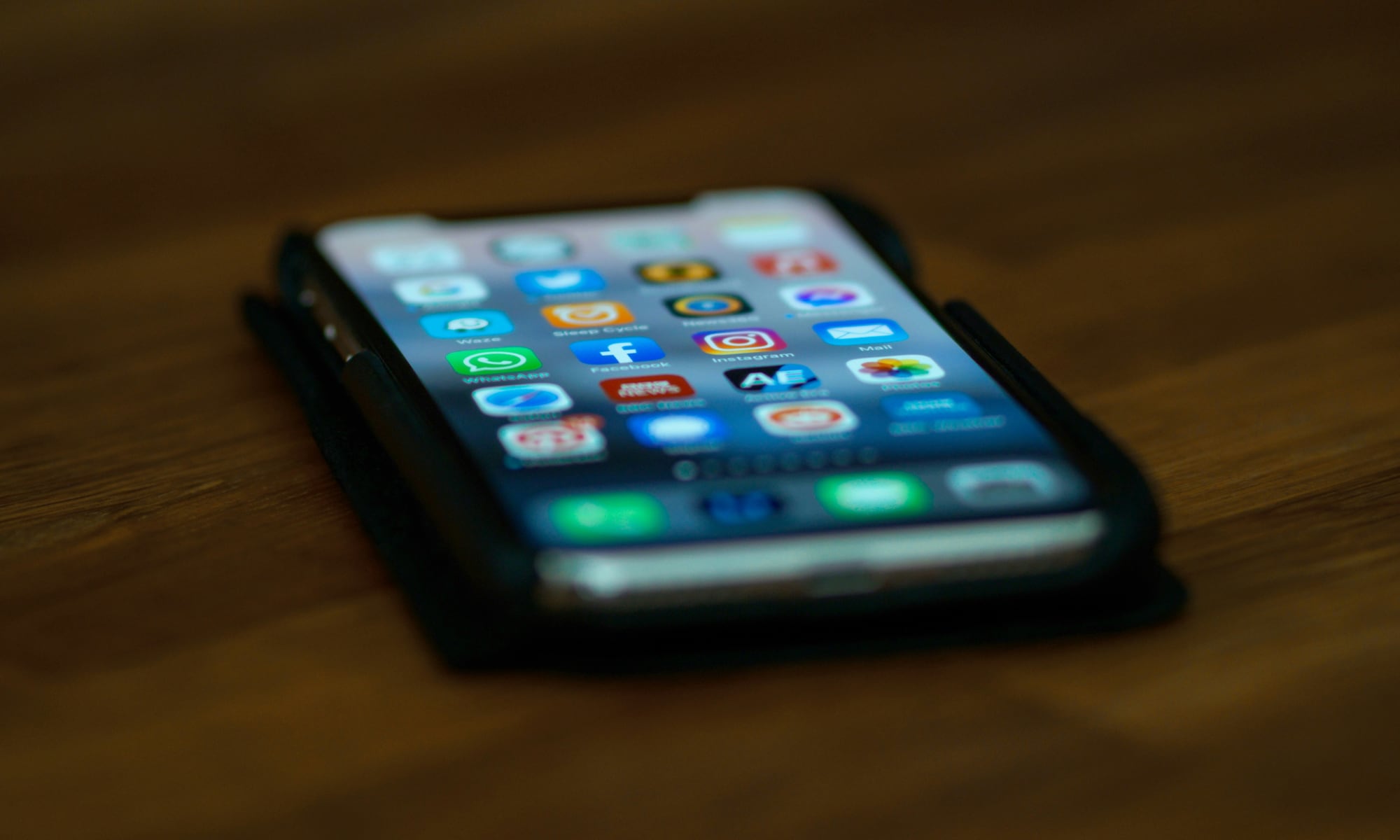
Another prevalent issue with iOS 26 is the perception of choppy animations, delayed app launches, and stuttering transitions, particularly on older devices.
Major updates often introduce enhancements to the user interface, which can impact device performance. With iOS 26, the design features increased transparency, “glassy” layers, and additional visual elements, which may strain older A-series chips nearing the end of their lifecycle.
To enhance the speed of your iPhone, consider restarting the device to terminate unnecessary processes consuming memory. Additionally, freeing up storage space can improve overall performance, especially if the device is operating close to its storage limit.
For older devices like the iPhone 12 or earlier models, reducing visual effects by enabling Reduce Motion and Reduce Transparency in the Accessibility settings can enhance the device’s responsiveness. If performance issues persist, it may indicate that your device is reaching obsolescence.
Calls, Data, Wi-Fi, and Apps Malfunctioning After the Update
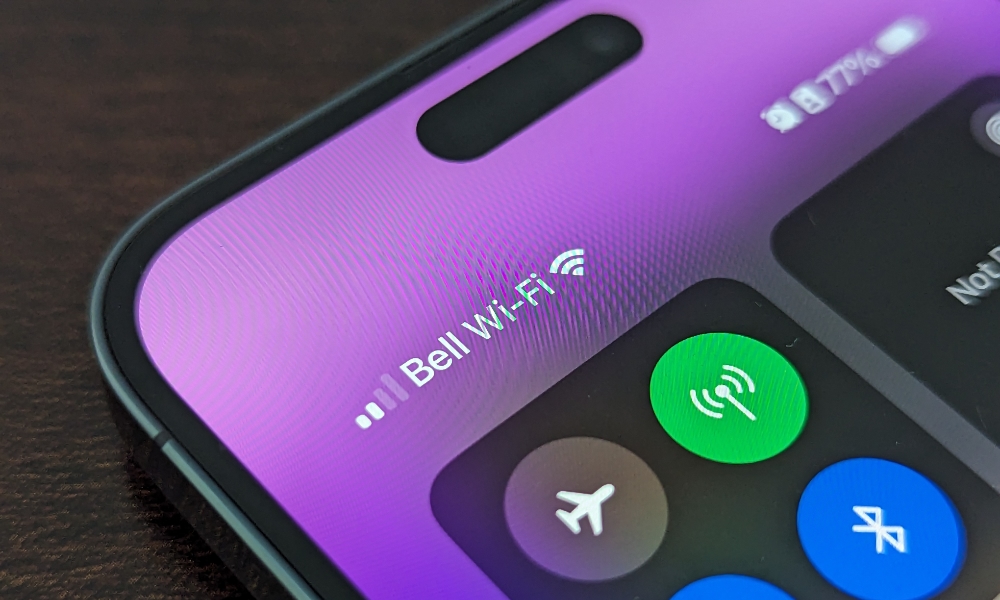
Encountering issues such as dropped calls, unreliable Wi-Fi connectivity, or app freezing post-update can be frustrating. Fortunately, Apple’s 26.0.1 update includes fixes for Wi-Fi, Bluetooth, and mobile network connectivity issues, along with bugs in the Camera app, app icon glitches, and VoiceOver accessibility problems.
If you are experiencing connectivity issues after updating early, installing the latest iOS 26.1 release should resolve these issues. If problems persist, attempt restarting your device and toggling Airplane mode on and off.
If the problem persists, consider resetting your network settings by following these steps:
- Open the Settings app on your iPhone.
- Select General.
- Scroll to the bottom and choose Transfer or Reset iPhone.
- Select Reset.
- From the pop-up options, choose Reset Network Settings.
- Wait for your iPhone to restart.
Keep in mind that this action will reset all network connections, requiring you to re-enter Wi-Fi passwords. Ensure you have this information on hand before proceeding.
If connectivity issues persist despite troubleshooting, consider contacting Apple Support and your carrier for further assistance.
Keyboard and Multitasking Glitches on iPadOS 26 (and Some iPhones)
iPadOS 26, Apple’s companion to iOS 26, introduces expanded windowing features and interface changes enhancing the Mac-like experience on iPads.
Users of M-series iPads have reported issues such as erratic floating keyboard behavior, input lag, and unresponsive interfaces when multiple apps are open. Similarly, on iPhones, complex text fields and new UI effects may impact keyboard responsiveness post-update, especially if apps have not been optimized for the new OS.
To address these issues, promptly update your frequently used apps to ensure compatibility with the latest OS version. Restarting your iPhone or iPad may also help alleviate performance issues if they persist.
Furthermore, updating to the latest software version is advisable to resolve such problems effectively.
Updating to iOS 26 Without Any Issues
Major iOS updates offer a balance of valuable new features like Call Screening and Hold Assist, alongside crucial security patches and improvements. However, new OS versions can introduce battery issues, performance hiccups, and bugs that require Apple’s attention.
Avoiding software updates indefinitely poses security risks, making it essential to update eventually. To streamline the updating process, take a few minutes to create a fresh backup of your iPhone before initiating the update.
For seamless app functionality, consider updating your apps before installing iOS 26 to ensure compatibility and avoid disruptions.
If you have updated to iOS 26 and are experiencing the aforementioned problems, rest assured that solutions exist. Begin by installing the latest software update, as this often resolves most OS-related issues.
For persistent issues, a factory reset of your iPhone is a drastic but effective solution. While this step may not be necessary for most users, it remains a viable option if all other troubleshooting methods fail. Remember to back up your iPhone before proceeding.
global $wp;
. ‘/’;
?>